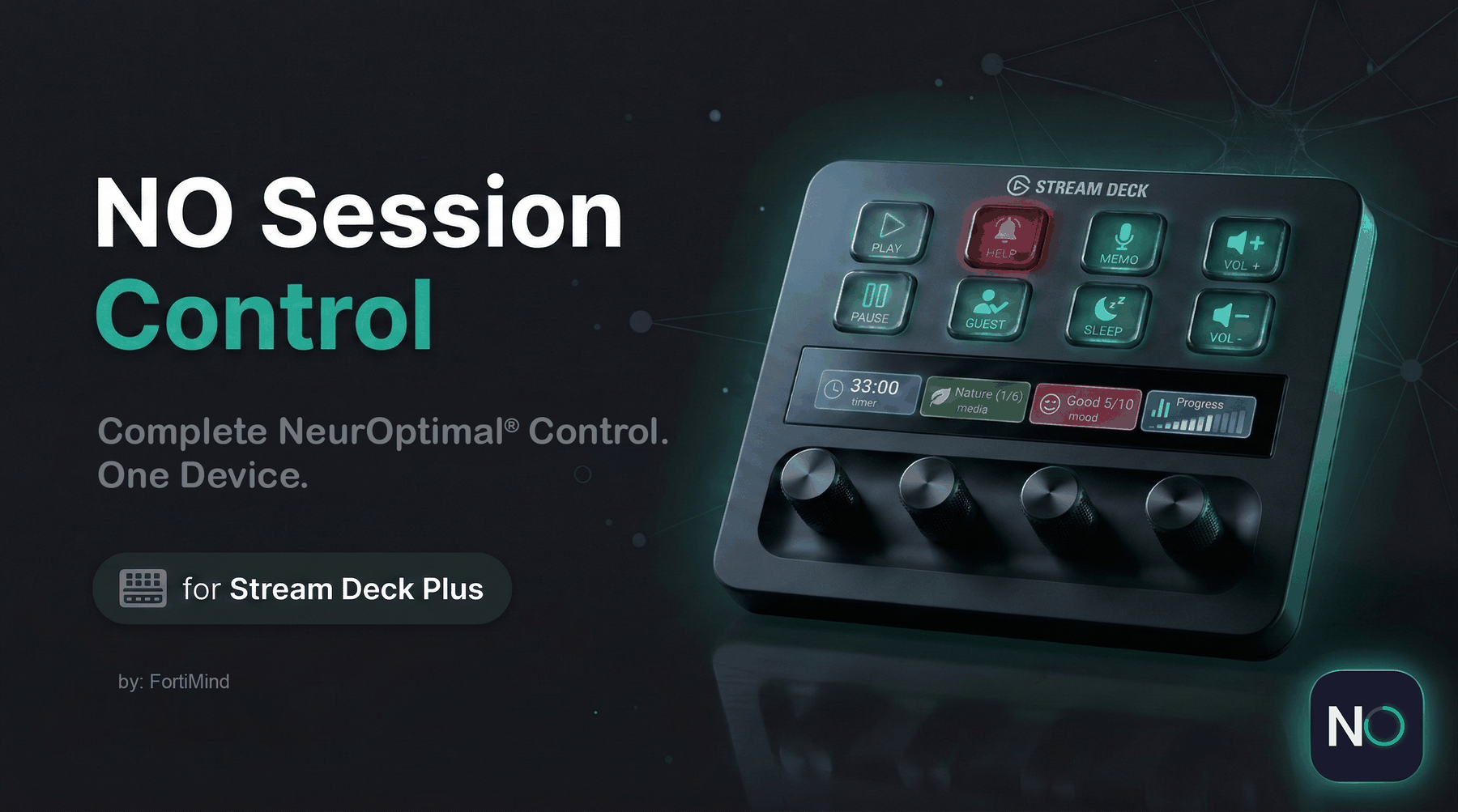
Getting Started with
NO Session Control
Give your clients agency over their NeurOptimal® session — and give yourself the freedom to support their journey instead of hovering over the equipment. NO Session Control turns the Elgato Stream Deck Plus into an intuitive command center that puts the experience in your client's hands.
First Things First — What is a Stream Deck?
If you have never seen or heard of a Stream Deck before, you are in the right place. Here is the quick version.
The Elgato Stream Deck Plus is a physical hardware device that connects to your Windows computer via the included USB-C to USB-A cable. It sits on your desk next to your neurofeedback station and acts as a dedicated control panel — giving you (or your client) tactile, one-touch access to actions that would otherwise require clicking through software on screen.
The Hardware at a Glance
The Stream Deck Plus has two control areas:
- 8 LCD keys — customizable buttons across the top of the device. Each key has its own built-in LCD screen that displays an icon, so you always know what it does. Press a key to trigger an action: start a session, pause, record a memo, adjust volume, and more.
- 4 rotary dials with an LCD touch strip — along the bottom of the device, four physical knobs sit beneath a shared LCD touch strip (800 × 100 pixels). Each dial is paired with the section of the strip directly above it, forming what Elgato calls an encoder. Turn the dial to adjust a value (like session duration or volume), press it down to confirm or toggle, and tap the touch strip above it for a quick action. The strip displays real-time feedback for each dial — a countdown timer, the current media name, a mood rating, or session progress. You can also swipe across the strip to switch between pages of actions.
The device is compact (5.5 × 5.4 × 4.3 in / 140 × 138 × 110 mm), weighs about one pound, and connects with a single cable (USB-C on the device, USB-A on the computer side) — no power adapter or wireless pairing required.
What is a Plugin?
On its own, the Stream Deck Plus is a blank canvas. A plugin is the software you install that tells the device what to do. NO Session Control is a plugin purpose-built for NeurOptimal® neurofeedback — it provides 14 dedicated actions that transform the Stream Deck Plus into a session command center. We also include a ready-made Profile that pre-assigns every button and dial for you, so there is no manual setup required.
NO Session Control requires a physical Elgato Stream Deck device to function. The plugin is software that runs on the device — it does not work without one.
Our recommendation: We built NO Session Control for the Elgato Stream Deck Plus and include a ready-made Profile that pre-configures every button and dial in seconds. The Stream Deck Plus is available from Elgato.com and Amazon.
Why Stream Deck Plus for Neurofeedback?
- Give clients agency. Instead of sitting passively while you click through software, your client can adjust volume, browse calming media, or pause the session themselves — right from the device at their fingertips.
- Free the practitioner. When the controls are on the Stream Deck, you are free to observe, coach, and support the session rather than managing a laptop. It changes the dynamic from technician to guide.
- Elevate the experience. A sleek, glowing control panel with labeled LCD buttons and smooth dials feels polished and professional. It signals to clients that their session environment was thoughtfully designed.
- One-click setup. Our included Profile file pre-configures all 8 keys and 4 dials in seconds. Double-click to install — no manual arrangement needed.
- Built for your workflow. Session timer, volume control, mood tracking, calming media slideshows, voice memos, client management, and analytics — every action was designed specifically for NeurOptimal® practitioners.
What's Included
| Product | What It Does |
|---|---|
| Plugin (14 Actions) | The core software — 9 keypad actions and 5 encoder actions that give you full session control from the Stream Deck Plus. |
| Profile (Included Free) | A ready-made layout file that pre-assigns all 8 keys and 4 encoders on your Stream Deck Plus. Double-click to install — no manual configuration needed. |
| Asset Pack (Optional, Sold Separately) | Five categories of calming image slideshows (Box Breathing, Animals, Nature, Landscape, Ocean) displayed on the client monitor during sessions. |
NO Session Control is a one-time, lifetime purchase — no subscriptions, no renewal fees. Each license is designed to pair with a single NeurOptimal® station, matching the way Zengar licenses work. If your practice runs multiple stations, you will need one copy of the plugin for each. Once purchased, your license can be transferred to a replacement computer if your setup changes. Both the plugin and the optional Asset Pack are available on the Elgato Marketplace.
Quick Start — Up and Running in 5 Steps
 → click Install.
NO Session Control.streamDeckProfile file from FortiMind.net, then double-click it. Every button and dial is pre-configured instantly.Need help? See Getting Help · FortiMind.net
Your First NeurOptimal® Session
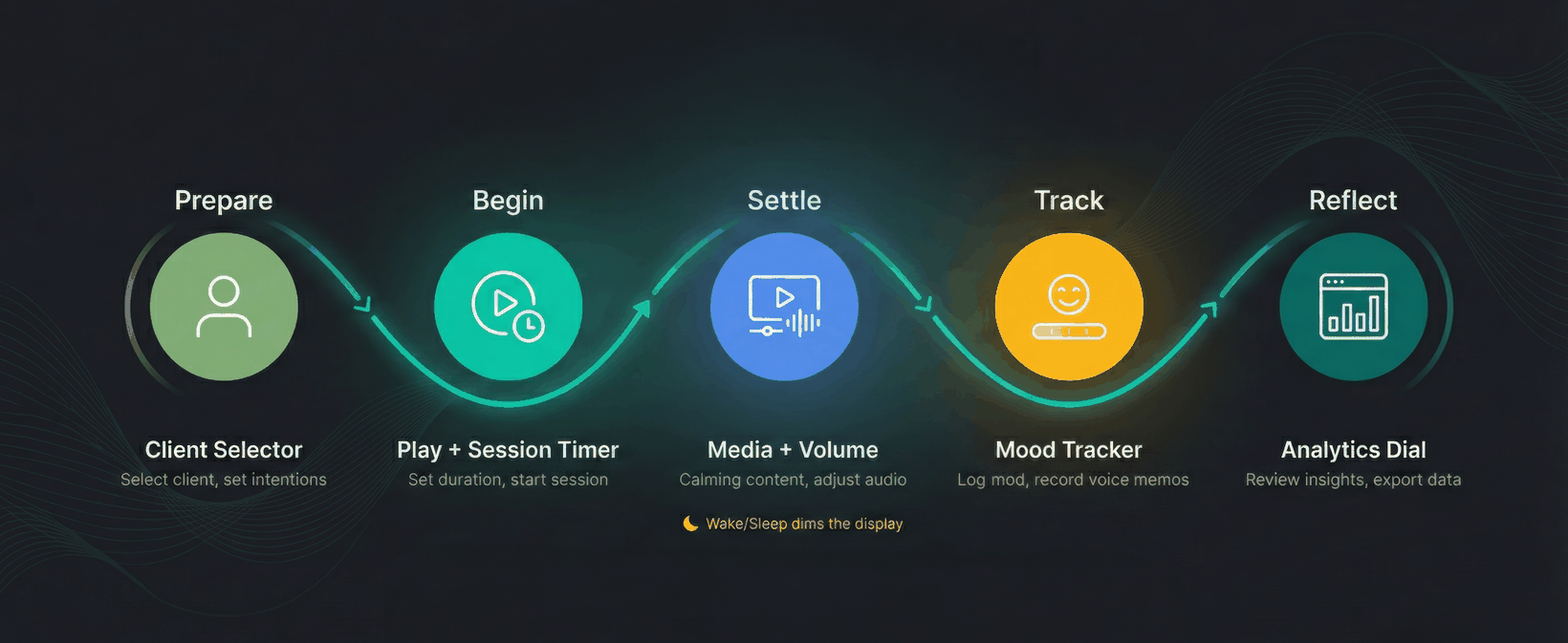
Before the Client Arrives
- Start NeurOptimal® on your computer as you normally would.
- Press the Sleep/Wake button on your Stream Deck to light everything up.
- Press the Client Selector button and choose the client's profile.
- Turn the Session Timer dial to set the session duration (e.g. 33 minutes).
- Turn the Volume Control dial to set a comfortable starting volume.
When the Client Is Ready
- Press Play Session. The plugin detects NeurOptimal®, activates the session window, and starts.
- (Optional) Turn the Media Selector dial to choose a slideshow, then press to play.
- Ask the client to rate their pre-session mood on the Mood Tracker dial, then press to save.
During the Session
- Adjust volume anytime with the Volume Control dial.
- Press Pause Session if the client needs a break. Press again to resume.
- Press Record Memo to capture a voice note. Press again to stop.
- Press Call Tech if the client needs assistance — the button flashes and plays an alert sound to notify you.
After the Session
- The session ends automatically when the timer expires, or long-press (2 sec) Pause Session to stop early. Your session data is saved automatically.
- Ask the client to rate their post-session mood on the Mood Tracker dial.
- Turn the Analytics Dial to review session stats on the LCD touch strip.
- Press Sleep/Wake to put the Stream Deck to sleep until the next client.
Build a routine. The most successful practitioners develop a consistent pre-session ritual: Sleep/Wake → Client Selector → Timer → Volume → Play Session. Within a week, it becomes second nature.
Before You Start — What You'll Need
Gather these items before you begin. Setup takes about 15 minutes.
Hardware
| Component | Details |
|---|---|
| Stream Deck | Stream Deck Plus (recommended) — other models support keypad actions only |
| Computer | Windows 10 or 11 (64-bit) |
| USB port | USB 2.0 or later |
Software
| Software | Minimum Version | Required |
|---|---|---|
| Stream Deck software | 6.9 or later | Yes |
| NeurOptimal® | Current version | Yes (for session control) |
macOS is not supported — NeurOptimal® is a Windows-only application.
Other Stream Deck models: The 5 encoder actions (dials + LCD touch strip) require the Stream Deck Plus specifically. The 9 keypad actions will work on other models (like the Stream Deck MK.2 or Stream Deck XL), but you will not have access to the encoders or the included Profile — which is what makes this plugin special.
The Stream Deck Plus is available from Elgato.com or Amazon. Once it arrives, plug it in via USB, install the free Stream Deck software, and come back to this guide.
Install the Plugin
Option A: From the Elgato Marketplace (Recommended)
- Open the Marketplace — In the Stream Deck software, click the Marketplace icon (top-right). This opens the Elgato Marketplace in your web browser.
- Find the plugin — Search for NO Session Control and select it.
- Purchase and install — Add to cart, complete checkout, then click Open in Stream Deck when prompted. Your browser will ask permission to open the Stream Deck software — allow it.
- Confirm — The Stream Deck software will prompt you to install. Click Install.
- Verify — You should see "NO Session Control" with 14 actions in the right-side actions panel.
You can also browse plugins directly inside the Stream Deck app: open the Plugins tab in the right-side actions panel, search for NO Session Control, and click Get.
Option B: From a Downloaded File
- Locate the
com.fortimind.no3-ctrl.streamDeckPluginfile on your computer. - Double-click the file. The Stream Deck software will open and prompt you to install.
- Verify the "NO Session Control" category appears with 14 actions.
Windows SmartScreen: If Windows shows a "Windows protected your PC" warning, click More info, then click Run anyway. This is normal for newly published software.
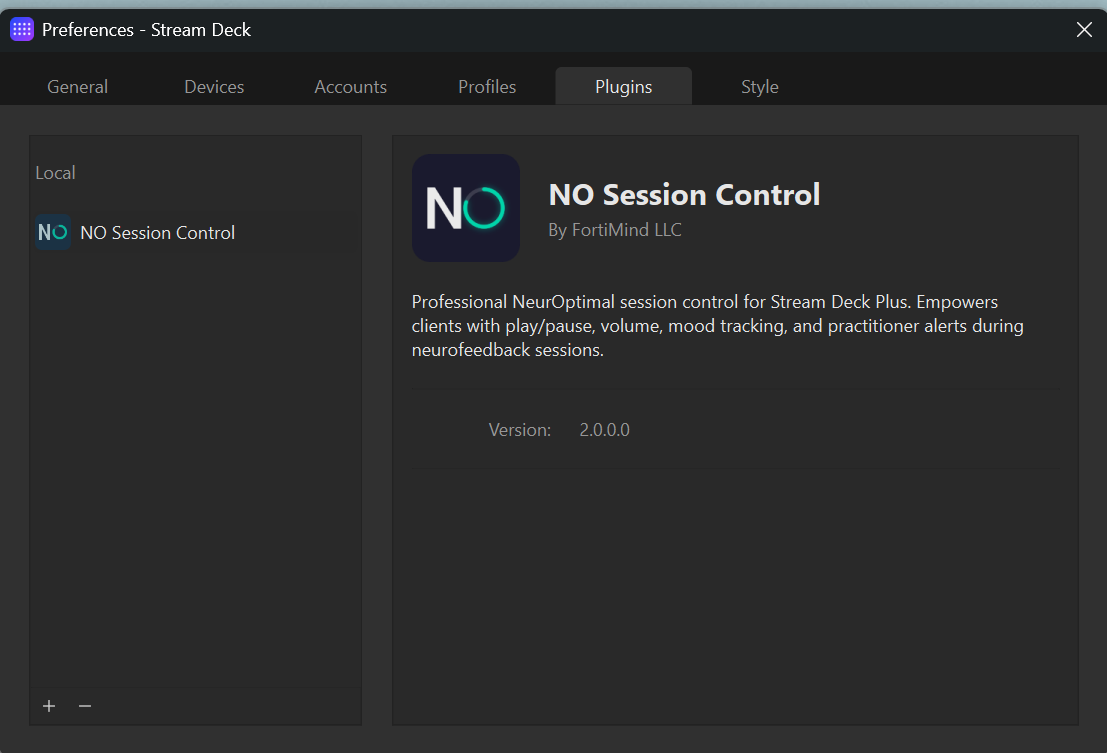
Once installed, open Preferences → Plugins in the Stream Deck software. You should see NO Session Control listed under Local:
Set Up Your Stream Deck Plus
With the plugin installed, the next step is to configure your Stream Deck Plus with the actions. You have two options:
Option A: Install the Recommended Profile (Fastest)
- Download the Profile file — Get
NO Session Control.streamDeckProfilefrom FortiMind.net (free download, included with your plugin purchase). - Double-click the file and click Install when prompted by the Stream Deck software.
- Select your Stream Deck Plus from the dropdown if you have multiple Elgato devices connected.
- Done! Your device should immediately show the full NO Session Control layout — all 8 buttons and 4 dials pre-configured and ready to use.
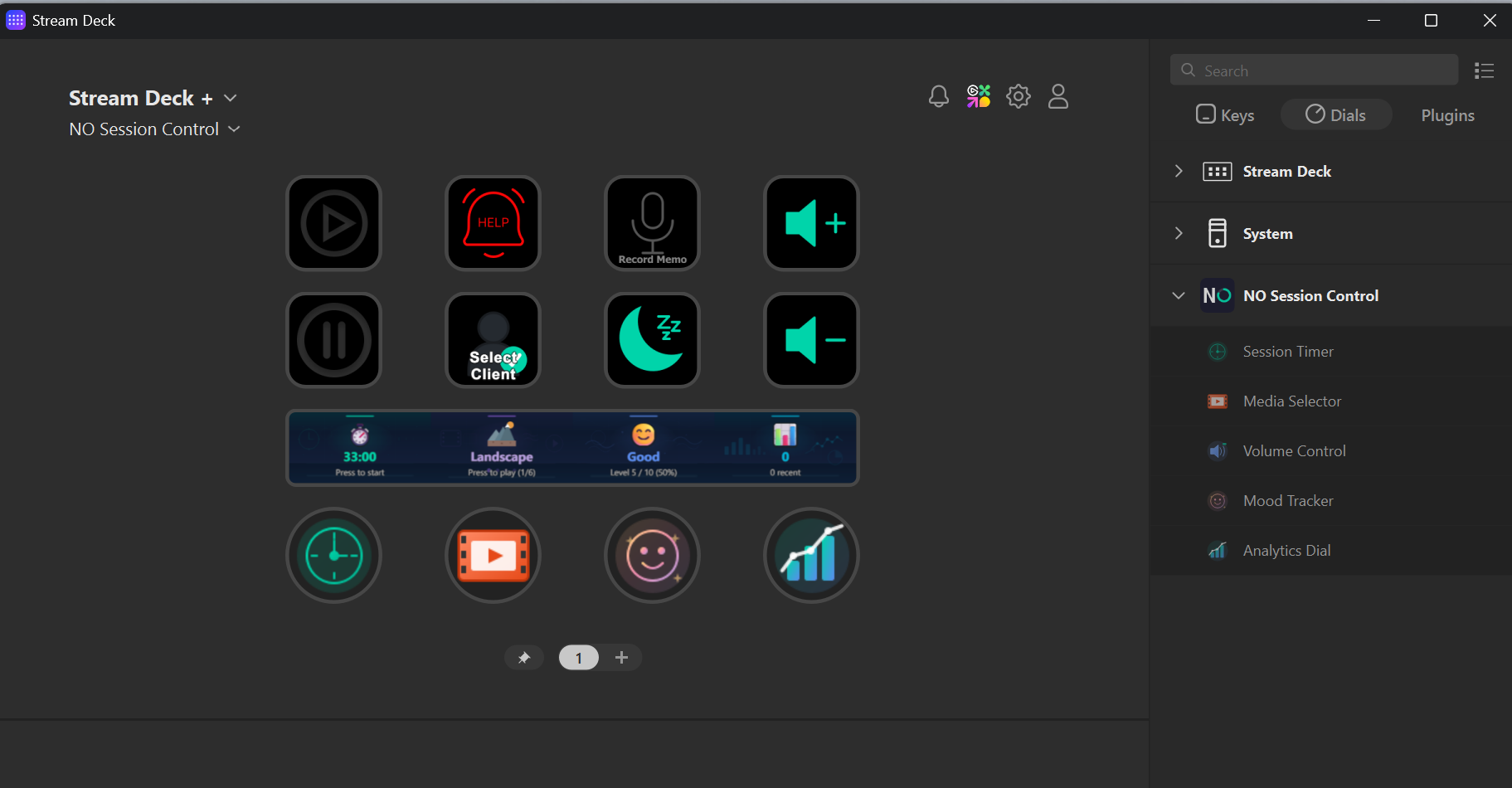
A profile is a saved layout with pre-arranged actions, icons, and settings. It configures your entire Stream Deck Plus in one click — no manual setup needed. You can always customize it later to match your preferences.
Download the Profile file from FortiMind.net. If you have trouble finding it, see Getting Help or contact support@fortimind.net and we will send you the file directly.
Option B: Build Your Own Layout (Manual)
If you prefer a custom arrangement, drag actions from the right-side actions panel to your Stream Deck grid. Expand the NO Session Control category to see all 14 actions — 9 keypad actions and 5 encoder actions:
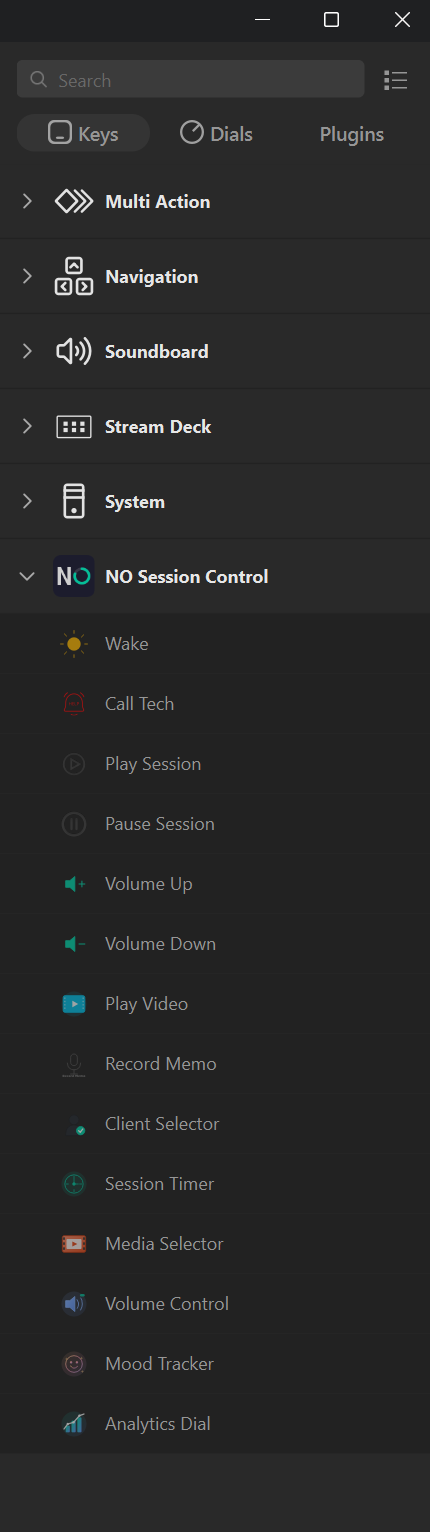
Recommended Layout
Encoder actions are different from keypad actions. Encoder actions can ONLY go on the bottom encoder row. Keypad actions go on the top rows. The Stream Deck software will not let you put them in the wrong place.
The plugin includes 14 actions total, but the Stream Deck Plus has 8 keypad slots and 4 encoder slots. The recommended layout above uses 8 keypad actions and 4 encoders. The extra actions — Play Video (keypad) and Volume Control (encoder) — can replace any action in the layout, or you can place them on a second profile page and swipe the touch strip to switch.
Install the Asset Pack (Optional)
If you purchased the Asset Pack separately, follow these steps. If not, skip to All 14 Actions.
What's in the Asset Pack?
The Asset Pack contains curated image slideshows and a guided breathing animation, played through the Media Selector dial during sessions.
| Category | Description |
|---|---|
| Box Breathing | Guided breathing animation — breathe in, hold, breathe out, hold. Smooth loop. |
| Baby Animals | Adorable baby animal images cycling on screen. Great for all ages. |
| Nature | Forests, meadows, and natural environments. |
| Landscape | Mountains, valleys, and open vistas. |
| Ocean | Beaches, waves, and underwater scenes. |
Installation Steps
- Find the Asset Pack file — Locate
fortimind-asset-pack.zipfrom your purchase download. - Open the plugin folder — Press Win + R, paste the path below, and click OK:
%APPDATA%\Elgato\StreamDeck\Plugins\com.fortimind.no3-ctrl.sdPlugin- Extract the ZIP file here — Copy the ZIP into this folder, right-click, and choose Extract All.
- Verify the folder structure:
assets/
  box-breathing/   (contains index.html)
  baby-animals/    (contains image files)
  nature/          (contains image files)
  landscape/       (contains image files)
ocean/ (contains image files)- Restart the Stream Deck software — Right-click its system tray icon → Quit, then reopen it.
- Confirm — Turn the Media Selector dial. You should see category names (Baby Animals, Nature, etc.) on the LCD strip.
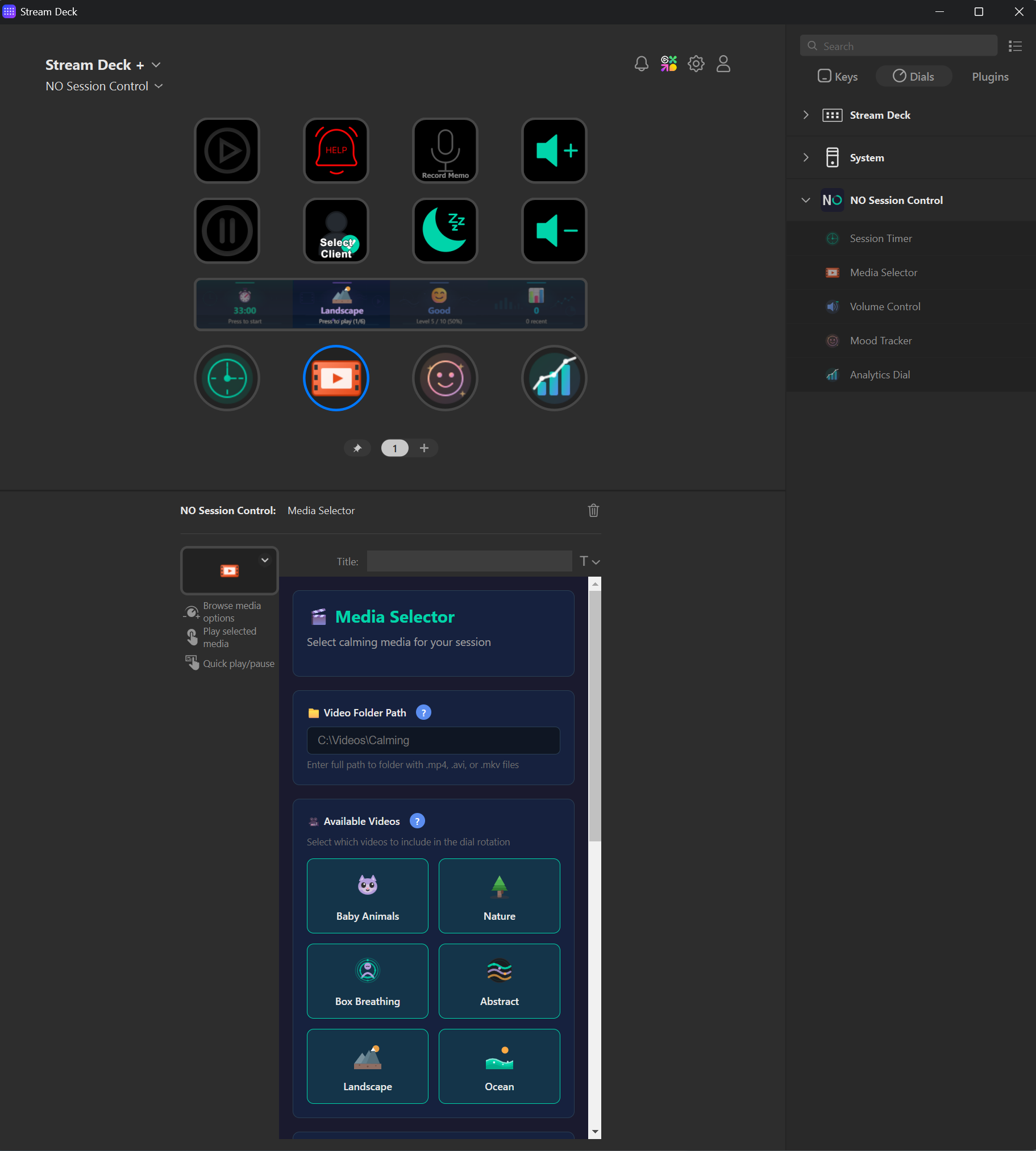
Box Breathing is an HTML animation that opens in a browser window — it works differently from the image slideshow categories.
Adding Your Own Images
You can expand any category by dropping .jpg, .jpeg, .png, or .webp files into its folder. Restart Stream Deck software for the plugin to detect the new images — they are automatically included in the shuffle rotation.
Custom Asset Pack Location
If you keep your asset pack in a non-default location, open the Media Selector settings panel (click the gear icon when the action is selected) and set the custom folder path to your preferred location.
All 14 Actions
NO Session Control includes 9 keypad button actions and 5 encoder actions. Click any action below to expand its full details and settings.
Keypad Actions (9)
Sleep/Wake Keypad
Purpose: Controls global Ambient Mode, toggling between Active (full brightness) and Rest (dimmed) states to create a distraction-free session environment.
How to Use: Press once to toggle between Active and Rest modes. In Rest mode, all buttons dim to reduce distractions. The button icon animates with a breathing glow so you can always find it.
| Setting | Default | Description |
|---|---|---|
| Dim Level | 15% | Brightness in Rest mode (0-100%) |
| Auto-Rest | On | Automatically enter Rest mode when session starts |
| Rest Delay | 3s | Delay before auto-rest activates |
| Wake Glow | On | Breathing glow animation on button |
Play Session Keypad
Purpose: Starts or resumes a NeurOptimal® session with animated feedback and automatic client tracking.
How to Use: Press to start a new session or resume a paused one. Shows "STARTING..." animation during launch.
| Setting | Default | Description |
|---|---|---|
| NO3 Path | C:\zengar\NO\NO.exe | Path to NeurOptimal® executable |
| Auto-Start | Off | Launch NeurOptimal® automatically |
| Require Client | Off | Block start until a client is selected |
| Show Client Name | On | Display active client on button |
| Show Confirmations | On | Display confirmation dialogs before starting |
Pause Session Keypad
Purpose: Pauses or completes the current session with dual-function press behavior.
How to Use:
- Short press (< 2s): Pause the active session
- Long press (> 2s): Stop and complete the session
The 2-second threshold prevents accidental session endings.
Play Video Keypad
Purpose: Launches calming video content using the system default player.
| Setting | Default | Description |
|---|---|---|
| Video Path | — | Full path to video file |
| Player | Default | System default, VLC, or custom |
| Auto-Play | On | Start playing immediately |
| Loop | Off | Repeat video when finished |
Plays any format supported by your system's default media player.
Record Memo Keypad
Purpose: Records voice notes during sessions for later review and client documentation.
How to Use: Press once to start recording (red icon with elapsed time). Press again to stop and save. Max 5 minutes.
| Setting | Default | Description |
|---|---|---|
| Max Duration | 5 min | Maximum recording time |
| Quality | Medium | Low / Medium / High |
| Save Location | Plugin data | Folder path for recordings |
Call Tech Keypad
Purpose: Alerts the practitioner for assistance using Windows notifications, sounds, and optional webhooks.
How to Use: Press once to trigger alert (button flashes). Press again to cancel. Auto-timeout after configured duration.
| Setting | Default | Description |
|---|---|---|
| Alert Type | Both | Visual + Audio notification |
| Duration | 30s | How long alert stays active |
| Alert Message | "Client needs assistance" | Custom notification text |
| Webhook URL | — | Optional Slack/Teams integration |
Client Selector Keypad
Purpose: Selects the active client for session tracking and per-client analytics.
How to Use:
- Short press: Cycle to the next client
- Long press (> 800ms): Clear the active selection
| Setting | Default | Description |
|---|---|---|
| Display Mode | First Name | Show initials, first name, or full name |
| Allow Create New | On | Enable creating clients from button |
| Auto-Create Guest | On | Create guest if no clients exist |
Volume Up Keypad
Purpose: Increases system volume with visual feedback, synchronized with the Volume Control dial.
Shows current volume percentage on button. Auto-unmutes if muted. Shows "MAX!" at boundary.
| Setting | Default | Description |
|---|---|---|
| Step Size | 5% | Volume change per press (1-20%) |
Volume Down Keypad
Purpose: Decreases system volume with visual feedback, synchronized with the Volume Control dial.
Shows current volume percentage on button. Shows "MIN!" at boundary. During an active session, volume will not go below 5% to protect the neurofeedback audio signal.
| Setting | Default | Description |
|---|---|---|
| Step Size | 5% | Volume change per press (1–20%) |
Encoder Actions (5)
Session Timer Encoder
Purpose: Configure and monitor session duration on the LCD touch strip with intuitive dial controls.
| Interaction | Function |
|---|---|
| Rotate (no session) | Adjust duration (5–60 min) with smart sensitivity |
| Press dial | Start session |
| Long-press touch | Stop/complete session |
| Rotate (during session) | Switch display mode |
Display Modes: Remaining (e.g. "25:30"), Elapsed (e.g. "07:30"), Both (e.g. "07:30 / 25:30").
| Setting | Default | Description |
|---|---|---|
| Default Duration | 33 min | Standard session length |
| Alert Before End | 5 min | Warning before session ends (0 = off) |
| Display Format | Remaining | Default display mode |
| Haptic | On | Feedback on dial rotation |
The dial gives you finer control in the 20–45 minute range — right where most sessions happen — so you can set the exact duration without overshooting.
Volume Control Encoder
Purpose: Smooth, natural-feeling volume control with visual feedback on the LCD strip and bidirectional sync with the Volume Up/Down buttons.
| Interaction | Function |
|---|---|
| Rotate | Adjust volume 0-100% (turn faster for bigger jumps) |
| Press dial | Toggle mute/unmute (restores previous level) |
| Tap touch strip | Toggle mute |
| Long-press touch | Reset volume to 50% |
| Rotate while muted | Adjust restore target without unmuting |
LCD Color Coding: Red = Muted or 81-100%, Teal = 1-30%, Blue = 31-60%, Amber = 61-80%.
| Setting | Default | Description |
|---|---|---|
| Step Size | 5 | Base adjustment step (1, 5, or 10) |
| Max Volume | 100 | Maximum allowed volume |
| Haptic | On | Feedback at 10% intervals |
| Haptic Intensity | Medium | Light / Medium / Strong |
| Swipe to Mute | On | Touch tap toggles mute |
Media Selector Encoder
Purpose: Browse and play calming media content with speed-based navigation and category filtering.
| Interaction | Function |
|---|---|
| Rotate slowly | Browse one item at a time |
| Rotate quickly | Accelerated browsing (up to 3x) |
| Press dial | Play/pause selected media |
| Tap touch strip | Next media |
| Long-press touch | Previous media |
Media Categories: Box Breathing, Baby Animals, Nature, Landscape, Ocean. Categories require the separately purchased Asset Pack.
| Setting | Default | Description |
|---|---|---|
| Video Folder | — | Path to media content |
| Shuffle | On | Randomize playback order |
| Loop | On | Auto-play next when finished |
| Categories | All On | Enable/disable individual categories |
| Haptic | On | Feedback on rotation |
Mood Tracker Encoder
Purpose: Track client mood on a 5 or 10-point scale with contextual logging and session correlation.
| Interaction | Function |
|---|---|
| Rotate slowly | Browse moods one level at a time |
| Rotate quickly | Accelerated browsing (skips levels) |
| Press dial | Log the current mood |
| Tap touch strip | Quick log (if auto-save enabled) |
| Long-press touch | Switch between 5 and 10-point scales |
Contextual Logging: Mood is automatically tagged as "before", "during", "after", or "standalone" based on session state.
| Setting | Default | Description |
|---|---|---|
| Scale Range | 10 | 5-point or 10-point scale |
| Auto-Save | On | Save on touch tap |
| Haptic | On | Feedback on selection |
| Highlight Extremes | On | Warning colors for moods 1-2 and 9-10 |
Log mood at three points per session — before (baseline), during (optional), and after (outcome) — for trend analysis.
Analytics Dial Encoder
Purpose: View session analytics and progress on the LCD with mini bar charts and milestone celebrations.
| Interaction | Function |
|---|---|
| Rotate | Switch between 4 analytics views |
| Press dial | Open full dashboard in browser |
| Tap touch strip | Quick cycle to next view |
Analytics Views:
- Overview — Sessions completed out of pack size, weekly trend chart
- Trends — Sessions this week with +/- indicator, completion rate
- Streaks — Consecutive day streak, session day history
- Sessions — Average duration, last 6 session durations
| Setting | Default | Description |
|---|---|---|
| Default View | Overview | Initial view on LCD |
| Mini Charts | On | Display bar charts |
| Session Pack Size | 10 | Target session count (6, 8, 10, or 12) |
| Haptic | On | Feedback on view switch |
Analytics Dashboard
The Analytics Dashboard gives you a clear picture of session history, client activity, and mood trends — all in your default browser.
Opening the Dashboard
Press the Analytics Dial to open the dashboard in your default browser.
Dashboard Tabs
| Tab | Shows |
|---|---|
| Overview | Total sessions, completion rate, average duration, weekly stats |
| Trends | Weekly session counts, completion rate trends |
| Streaks | Consecutive day tracking, longest streak, current streak |
| Sessions | Individual session list, duration, completion, mood entries |
Data Export
Export your data in CSV (for spreadsheets) or JSON (for technical analysis). Exports include session records, mood logs, and practitioner notes.
Data Storage & Privacy
All data is stored locally on your computer — nothing is sent to the cloud or transmitted externally. The plugin creates automatic backups every 30 seconds with crash recovery built in.
If you handle protected health information (PHI), consider enabling full-disk encryption (BitLocker) as part of your overall HIPAA compliance strategy. Consult your compliance officer for full requirements.
Data location: Press Win + R, paste the path below, and click OK:
%APPDATA%\Elgato\StreamDeck\Plugins\com.fortimind.no3-ctrl\analyticsQuick Reference Card
Print this and keep it near your Stream Deck Plus until you have the layout memorized.
| Action | Location | What It Does |
|---|---|---|
| Play Session | Button 1 | Start or resume NeurOptimal® session |
| Call Tech | Button 2 | Alert the practitioner |
| Record Memo | Button 3 | Start/stop voice recording |
| Volume Up | Button 4 | Quick volume increase |
| Pause Session | Button 5 | Short press = pause, Long press = stop |
| Client Selector | Button 6 | Choose active client |
| Sleep/Wake | Button 7 | Toggle rest mode (dim all buttons) |
| Volume Down | Button 8 | Quick volume decrease |
| Play Video | (Assignable) | Launch video on client monitor |
| Session Timer | Dial 1 | Turn = set duration, Press = start |
| Media Selector | Dial 2 | Turn = browse, Press = play |
| Mood Tracker | Dial 3 | Turn = rate 1–10, Press = save |
| Analytics Dial | Dial 4 | Turn = cycle stats, Press = dashboard |
| Volume Control | (Assignable) | Turn = adjust, Press = mute |
Troubleshooting
Solutions to the most common issues. Click to expand.
I don't see the plugin in Stream Deck
- Make sure you are running Stream Deck software version 6.9 or newer. Check: Stream Deck → Settings → About.
- Restart the Stream Deck software (right-click the tray icon → Quit, then reopen).
- If you installed from a file, make sure you double-clicked the
.streamDeckPluginfile, not the ZIP.
Play Session doesn't find NeurOptimal®
- Make sure NeurOptimal® is running and fully loaded before pressing Play Session.
- If the plugin cannot find it automatically, open the Play Session settings (gear icon) and set the path manually. Default:
C:\zengar\NO\NO.exe.
The slideshows don't show up in Media Selector
- Check that the Asset Pack is extracted to the correct folder (see Install Asset Pack).
- The
assetsfolder must be directly inside the plugin folder, not nested in an extra subfolder. - Restart the Stream Deck software after installing the Asset Pack.
The LCD touch strip isn't showing anything
- Confirm you are using a Stream Deck Plus (the model with dials). The LCD strip only exists on the Plus model.
- Make sure you placed the dial actions on the bottom row, not the top button row.
Volume control is not working
- Check that the correct audio output device is selected in Windows. Click the volume icon in your taskbar and verify the right device is chosen.
- Try restarting the Windows Audio service:
Win + R→ typeservices.msc→ find "Windows Audio" → right-click → Restart.
A dial is not responding
- Remove the action from the dial position (drag it off), then drag it back. This resets the connection.
- Try a different dial position to check if it is a hardware issue.
- Check the USB cable connection to your computer.
Do I need NeurOptimal® to use this plugin?
NeurOptimal® is required for session control features (Play, Pause, session detection). Volume, media, mood tracking, and analytics work independently.
Where is my data stored?
All data is stored locally: %APPDATA%\Elgato\StreamDeck\Plugins\com.fortimind.no3-ctrl\analytics
No cloud storage, no external data transmission. Your client data never leaves your computer.
What happens when a new version comes out?
- If installed from the Marketplace, updates install automatically when auto-update is enabled.
- For manual updates, download the new
.streamDeckPluginfile and double-click it. It overwrites the old version. - Your preferences and client data are stored separately — reinstalling or updating preserves all your data.
How do I uninstall or reinstall the plugin?
- To uninstall: Open Stream Deck software → right-click any NO Session Control action in the sidebar → select Uninstall.
- To reinstall: Go to the Marketplace and install it again, or double-click the
.streamDeckPluginfile. Your client data and preferences are stored in a separate folder and will not be lost.
I have multiple NeurOptimal® stations — do I need a plugin for each one?
Yes. Each NeurOptimal® station requires its own plugin license, just like NeurOptimal® itself is licensed per computer. Once purchased, each license is yours for life with no recurring fees. The Profile file and Asset Pack also need to be installed separately on each machine.
How do I back up my client data?
Copy the entire analytics folder from the plugin directory to a safe location:
%APPDATA%\Elgato\StreamDeck\Plugins\com.fortimind.no3-ctrl\analytics
To restore, copy the analytics folder back to the same location and restart the Stream Deck software. We recommend backing up regularly — especially before updating Windows or reinstalling the Stream Deck software.
Getting Help
Visit our Support & FAQ page for answers to common questions, troubleshooting guides, and a contact form.
We are a small team and we actually read every message. If you are stuck, reach out.
| Channel | Details |
|---|---|
| support@fortimind.net | |
| Support page | fortimind.net/support |
| Website | FortiMind.net |
| Response time | Usually within 24 hours on business days |
When Contacting Support
Please include:
- Your Stream Deck software version (Settings → About)
- Your Windows version (
Win + R→ typewinver) - What you were trying to do and what happened instead
- A screenshot of any error message, if possible